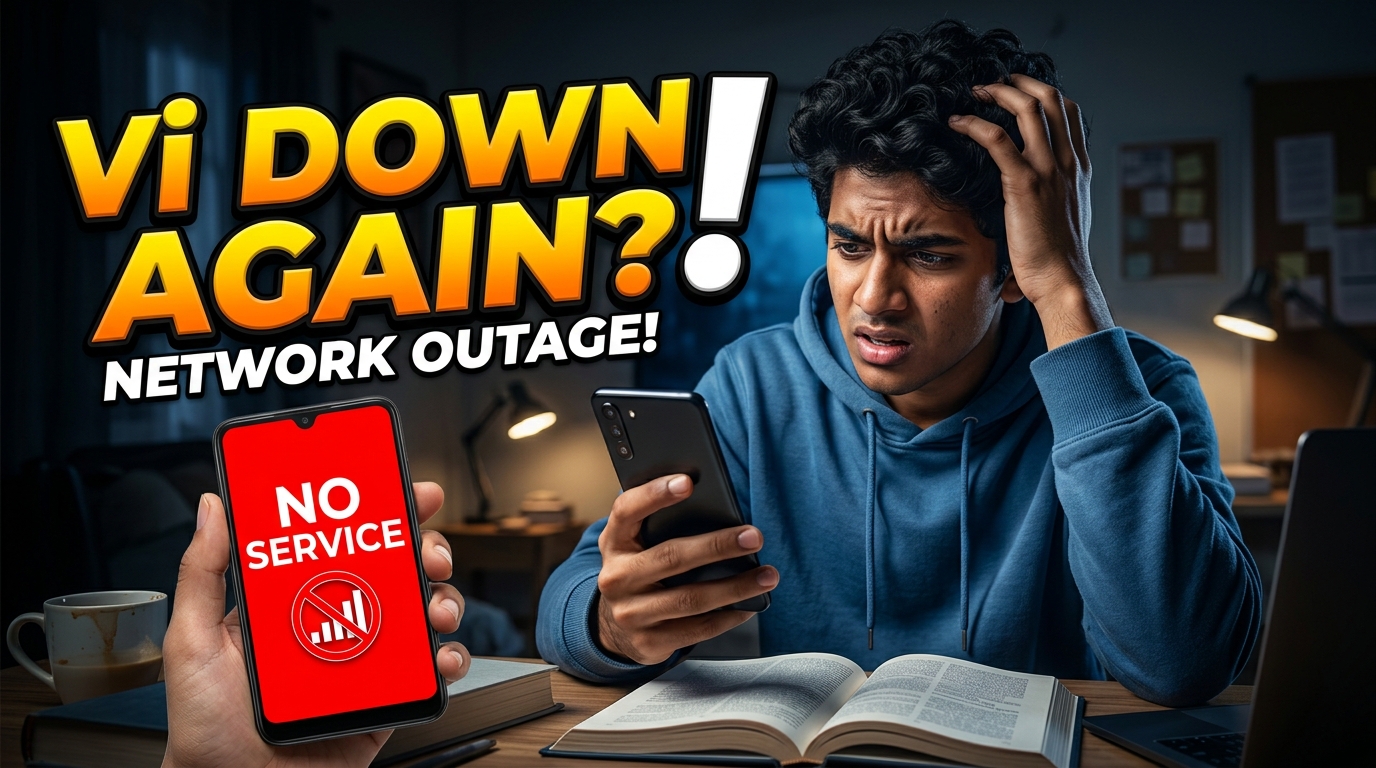
You pick up your phone to send an important message, but nothing happens. You look at the top right corner of your screen, and the network bars are completely empty. It just says "Emergency Calls Only" or "No Service". Or maybe the signal bars are full, but your Vi internet is crawling like a snail.
Facing a network problem on Vodafone Idea (Vi) can be extremely frustrating, especially when you need to make a UPI payment or join a video call. But don't panic. You usually don't need to visit a mobile repair shop or buy a new SIM card. Let's look at three simple steps to fix your Vi network right now.
Sometimes your Vi network drops just because your phone is trying to save battery. If your signal keeps disappearing, read our guide on how to force your phone to stay connected to high-speed data.
STEP 1: FIX THE "NO SERVICE" ERROR INSTANTLY
If your signal bars have completely disappeared, your phone is struggling to talk to the nearest Vi mobile tower. The easiest way to fix this is to force your phone to reboot its connection.
The 15-Second Restart
Pull down your notification menu and tap the Airplane Mode icon. Wait for exactly 15 seconds. Then, tap it again to turn it off.
When you do this, your phone forgets the old, broken connection and scans the area for a fresh, strong signal from the nearest Vi tower. This simple trick solves the "No Service" error almost 80% of the time.
STEP 2: THE VI APN SETTINGS FOR FAST INTERNET
What if your signal bars are full, but the internet is just not working? The problem is likely your APN (Access Point Name) settings. If your APN is wrong, your phone literally does not know how to find the Vi internet servers.
For Android Users: Go to Settings > Mobile Networks > Vi SIM > Access Point Names. Click 'Add' to create a new profile with these exact details:
- Name: Vi Internet
- APN: www
- APN Type: default,supl
- APN Protocol: IPv4/IPv6
Leave everything else blank (Not Set). Save the profile, select it, and restart your phone.
For iPhone Users: Apple makes it easier. Go to Settings > Cellular > Cellular Data Network. Just make sure the APN field says iphone. That is all you need to do.
STEP 3: ARE VI TOWERS DOWN IN YOUR CITY?
If you tried the Airplane mode trick and saved the correct APN, but your internet is still completely dead, the problem is not your phone. The problem is the Vi tower in your neighborhood.
Right now, Vi is actively upgrading many of its old 4G towers to new 5G technology across India. When engineers work on a tower, they have to turn it off for a few hours. If your local tower is under maintenance, you will face a total network blackout.
To confirm this, you can open the official Vi App (using a friend's Wi-Fi) or visit the Vi website to check if there is an official outage reported in your PIN code area. If the tower is down, you just have to wait a few hours until the engineers finish their work.
Once your network comes back, you can check your new internet speed using our Vi Speed Test Tool.
FAQ:-
Why is my Vi internet so slow inside my bedroom?
Vi uses specific high-frequency radio waves in many cities that struggle to pass through thick concrete walls. If your speed drops indoors but is fast on the balcony, it is a physical wall issue, not a phone setting issue.
Can I use my old Vi 4G SIM card for the new Vi 5G network?
Yes. Just like Airtel and Jio, your existing 4G SIM card is fully compatible with the 5G network. You just need a 5G phone and an active data plan.
Why do my calls drop on the Vi network?
Call drops usually happen when you are moving between the range of two different mobile towers (like when traveling in a car). If it happens sitting at home, turn on "Wi-Fi Calling" in your phone settings to make calls using your home broadband instead of the mobile tower.
