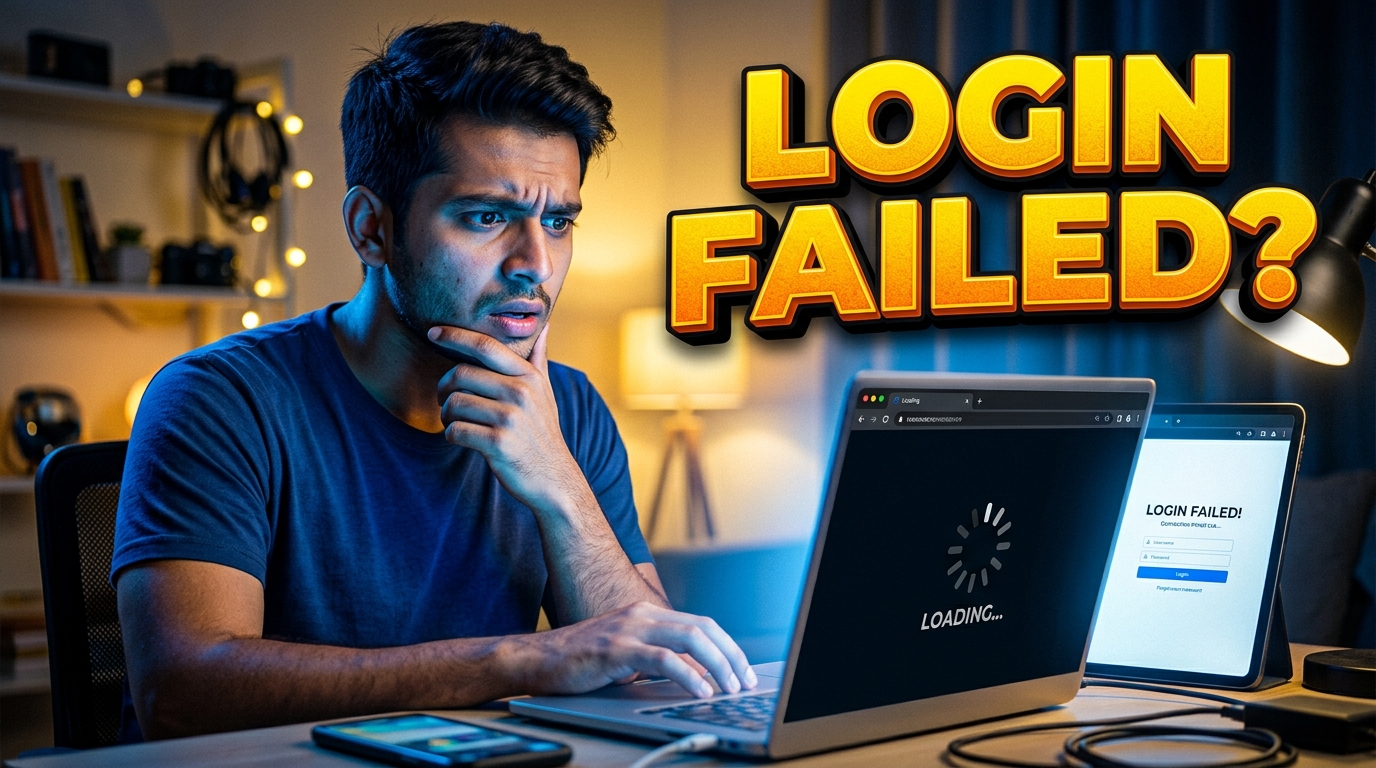
You turn on your laptop, connect to your home Wi-Fi, and open Chrome to start working. But instead of Google, you are supposed to see the Tikona Broadband login portal. You wait for it... but it never loads. The page just spins and says "This site cannot be reached".
Having a fast internet connection but being unable to log in is the most frustrating part of using Tikona. This happens because modern web browsers and smartphones have become very strict about security, and they often block automatic login screens (Captive Portals). Let's look at how to force the page to open, and a secret trick to bypass it forever.
If you get totally fed up with Tikona's login portal and switch to Hathway, just know that fiber cuts are common there. We wrote a whole guide on fixing the Hathway red light error if you ever need it.
TRICK 1: FORCE OPEN WITH "NEVERSSL"
Modern browsers like Chrome and Safari try to force every website to use a secure "HTTPS" connection. Because the Tikona login page is a local, unsecured page, your browser gets confused and blocks it, leaving you with a blank screen.
To fix this, you need to visit a website that has zero security, which forces the Tikona system to intercept your connection and show the login page.
Do This Right Now:
- Open your web browser (preferably in Incognito or Private Mode).
- In the URL address bar, type exactly this:
http://neverssl.com(Make sure there is no 's' after http). - Hit Enter.
Instantly, the Tikona web portal should pop up on your screen, allowing you to enter your User ID and password.
TRICK 2: RESTART THE POE ADAPTER
Tikona internet usually comes from a small white dish antenna on your roof. This antenna gets its power from a small black box inside your house called the POE (Power Over Ethernet) adapter. The wire from the roof plugs into this black box.
Sometimes, the dish antenna hangs because of heat or heavy rain. If the antenna crashes, it cannot send the login page to your phone. Simply unplug the black POE adapter from the wall switch, wait for 2 minutes, and plug it back in. Wait for the lights on your Wi-Fi router to turn green, and try logging in again.
TRICK 3: THE PERMANENT BYPASS (BEST METHOD)
Are you tired of entering your User ID every single day? You can actually put your Tikona ID and password directly inside your home Wi-Fi router. The router will automatically log in for you, 24/7, and you will never see the login page again.
How to Configure PPPoE:
- Log into your personal Wi-Fi router (usually by typing
192.168.1.1or192.168.0.1in your browser). The default username and password for most routers is admin. - Go to the WAN Settings or Internet Connection Type page.
- Change the connection type from "DHCP/Dynamic IP" to PPPoE.
- Enter your Tikona User ID (your numeric login ID) and your Tikona Password in the boxes provided.
- Save the settings and reboot the router.
Once your router reboots, you are permanently online. Run a quick test on our Tikona Speed Test Tool to make sure your speed is stable.
FAQ:-
What is the official Tikona Customer Care number for internet faults?
If your internet is completely dead and the login page trick does not work, you can call the official Tikona support line at 1860 3000 3434 or email them at [email protected].
Can I log into the Tikona page from two different phones?
If you connect the roof wire directly to a computer, you can only log in on one device. However, if you plug the wire into a Wi-Fi router, the router acts as the single login device, allowing your whole family to share the internet without everyone logging in.
Why does my Tikona internet disconnect every few hours?
Tikona's session management system automatically logs you out if it detects zero activity for a long time, or if your local IP address changes. Setting up your router using the PPPoE method (Trick 3 above) completely stops this random disconnection problem.
